Connect TidyWeb with Todoist
TidyWeb Tasks enables you to block all unrelated websites and pages while working on a task. You can connect TidyWeb to Todoist and start any task in your list in two clicks. When you finish it in the TidyWeb extension or app, your task is ticked off automatically in Todoist.
Set up Todoist Integration
You only do this once. Setting up the connection takes about two minutes.
1. Make sure you have an active TidyWeb and Todoist account. You need to be signed in on your computer in the TidyWeb browser extension or the desktop app.
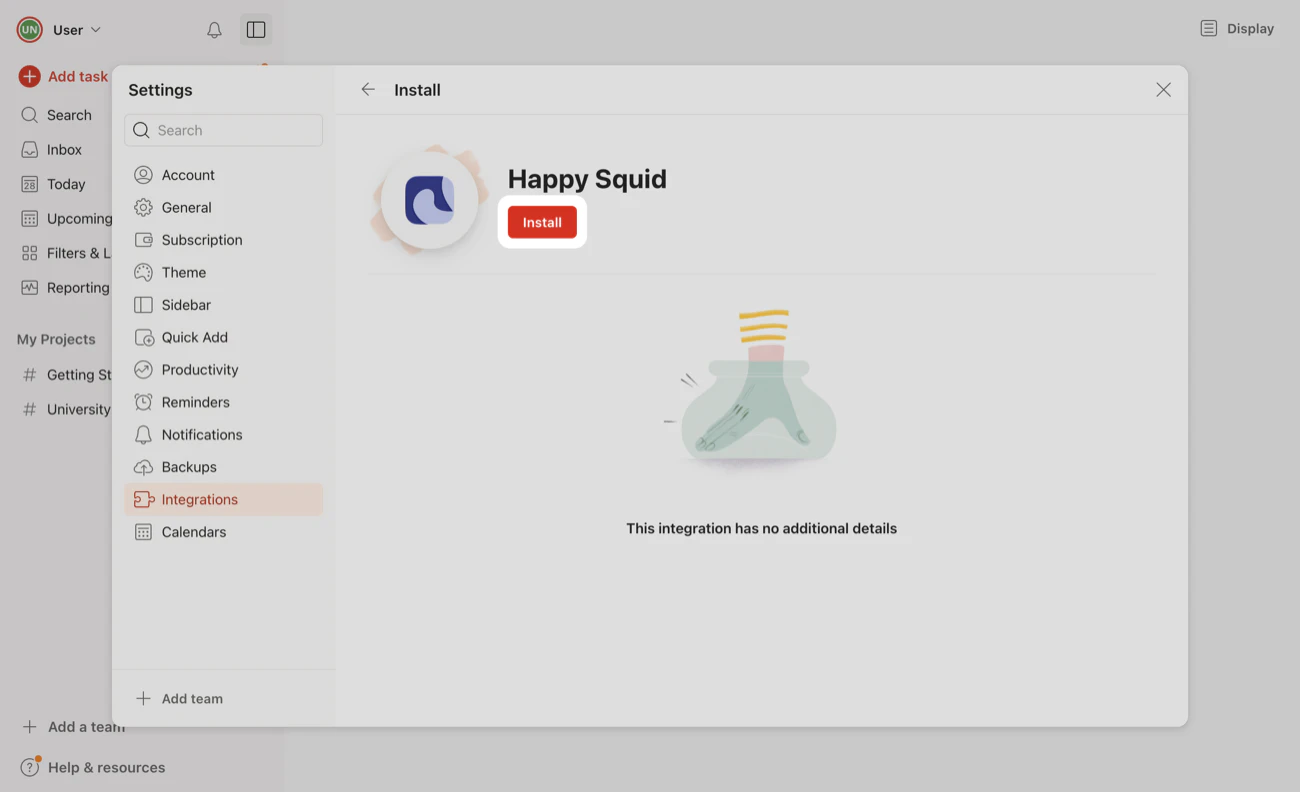
2. Open the TidyWeb integration page while you’re logged in to Todoist, then click Install and Confirm.
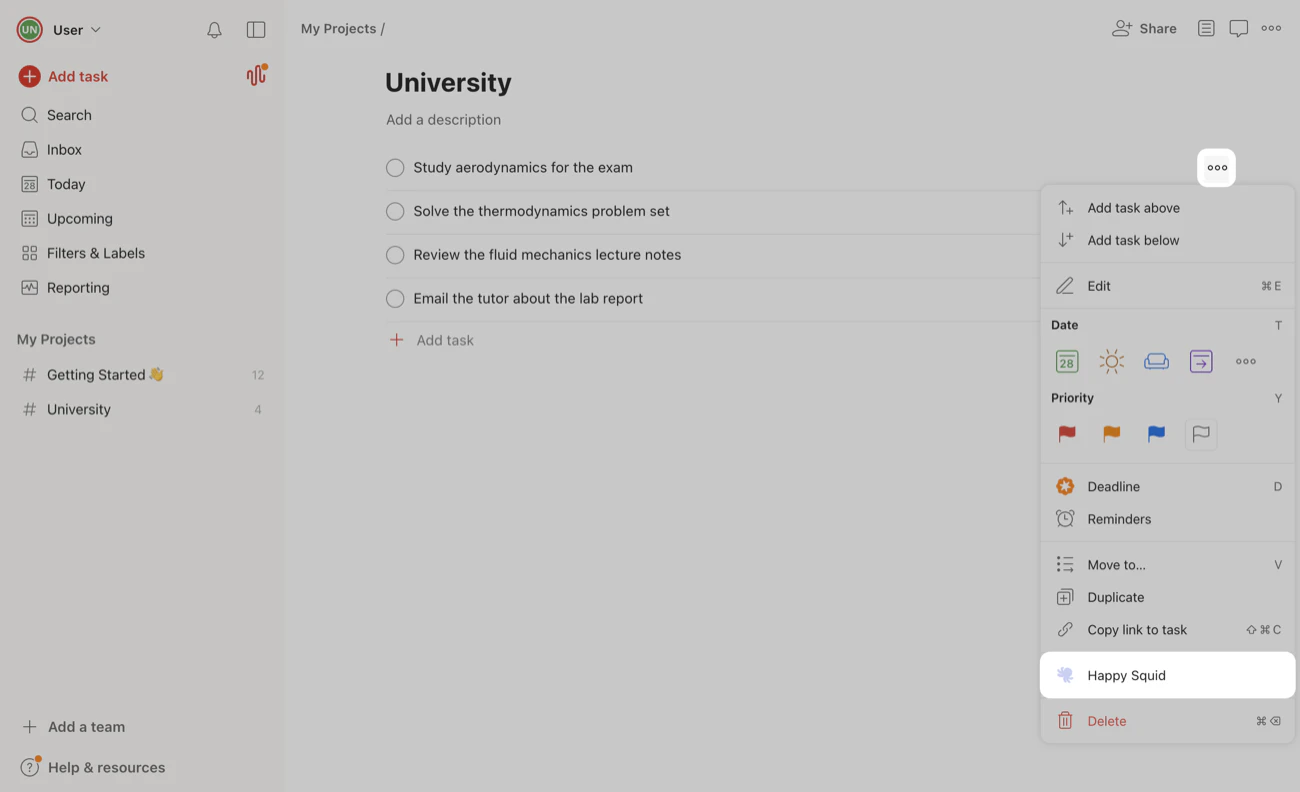
3. Open the ⋯ menu of any task in Todoist and choose TidyWeb.
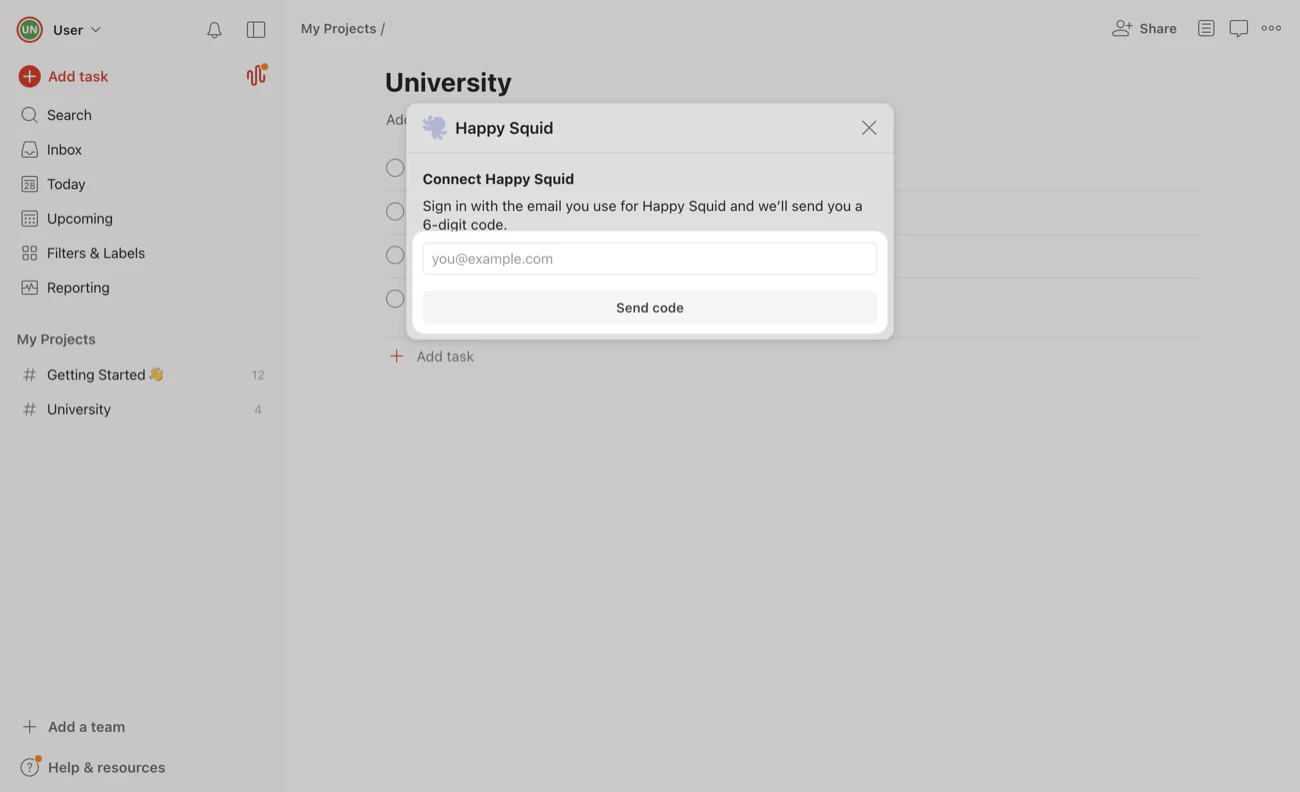
4. Enter the email address of your TidyWeb account and click Send code. You need to enter the email you use to sign in to TidyWeb. You’ll find it in TidyWeb under Advanced Settings, then Account. Then enter the 6-digit code we email you and click Sign in.
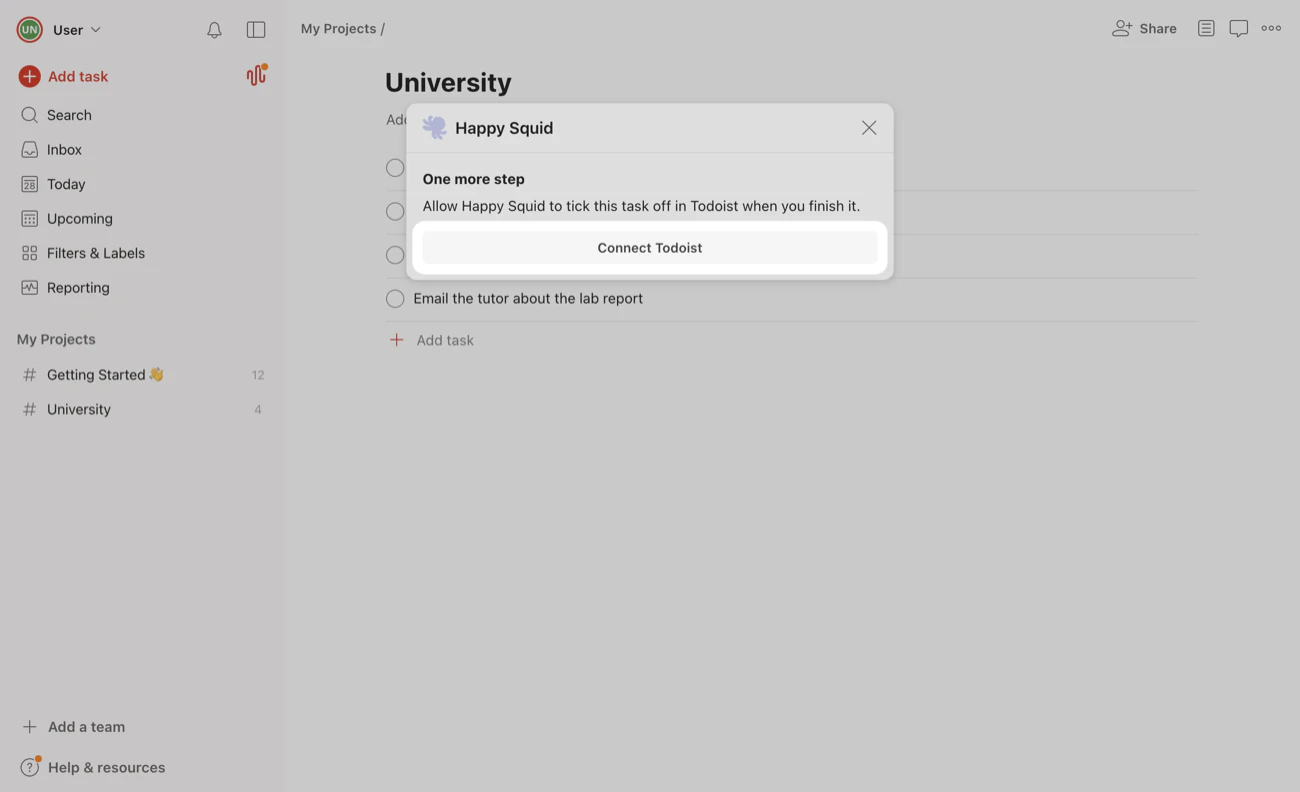
5. Click Connect Todoist so TidyWeb can tick off your tasks when you finish them.
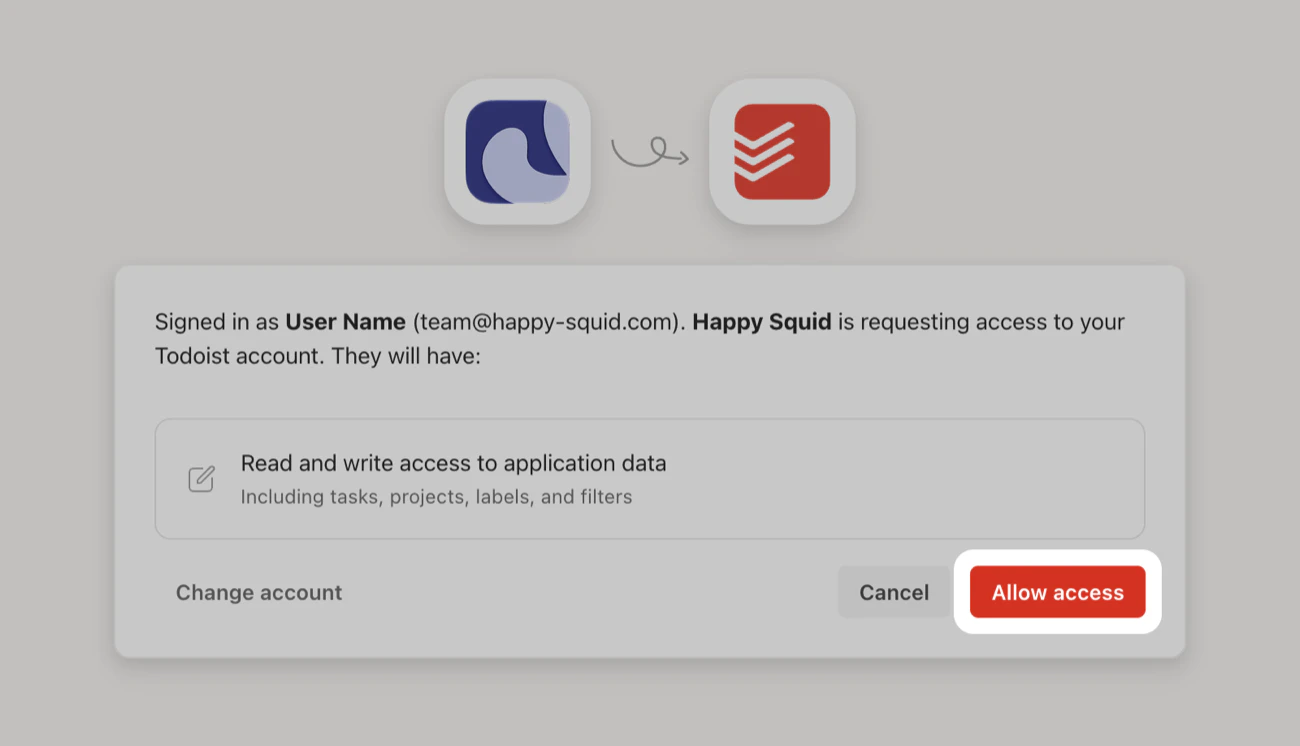
6. On the page Todoist opens, click Allow access. If Todoist asks you to log in on this page, use the same Todoist account as before. You’re then taken back to Todoist.
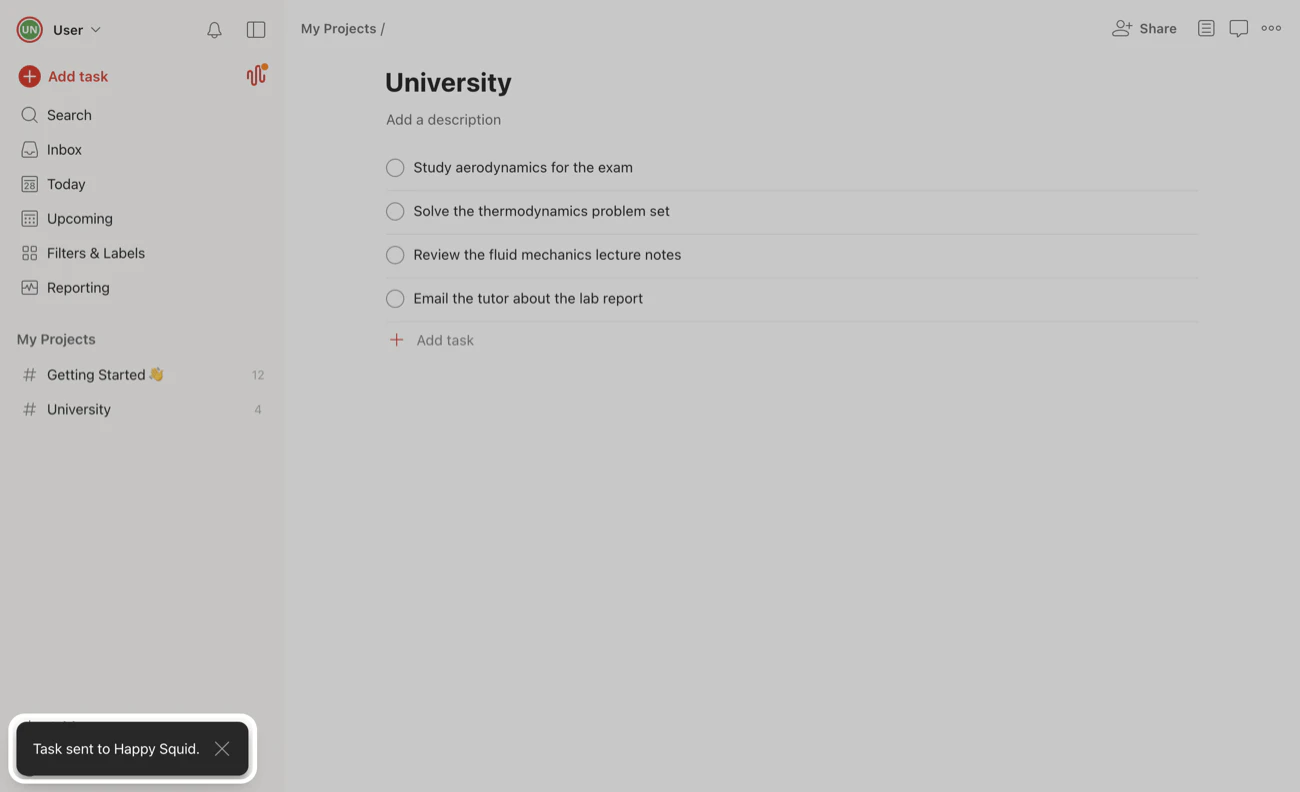
7. You’re all set. You can pick your first task and choose TidyWeb from its ⋯ menu again. Your Task is sent to TidyWeb and appears within a few seconds.
Start and Finish Tasks from Todoist
1. Open the ⋯ menu of the task you want to work on and choose TidyWeb.
2. When you’re done, click the ✓ next to your Task in TidyWeb.
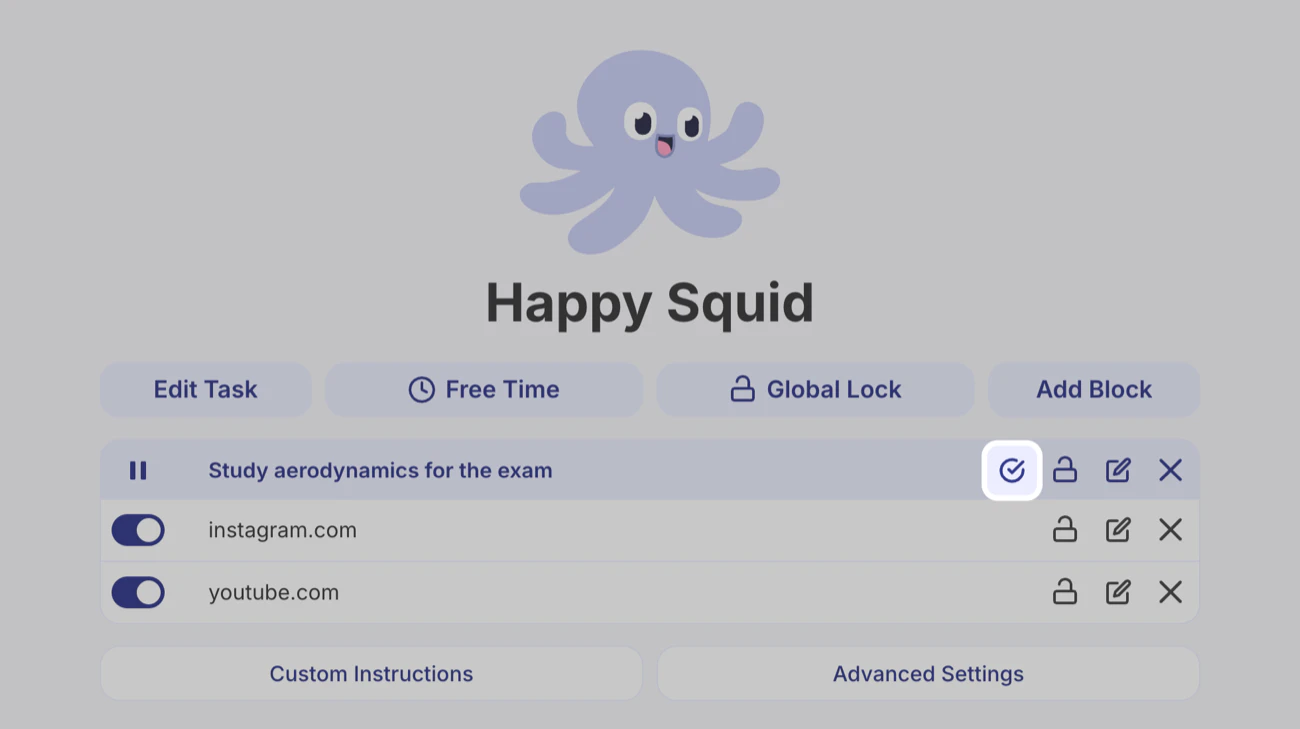
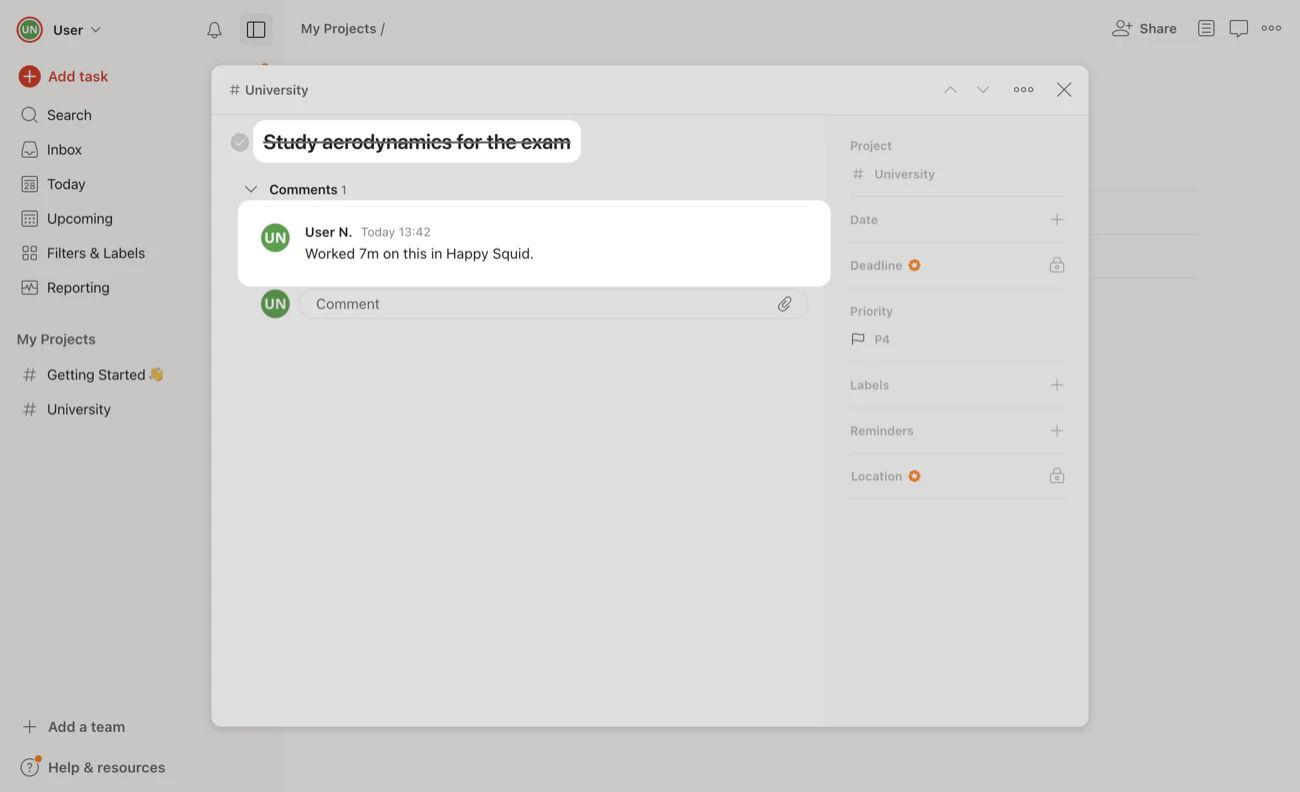
3. TidyWeb ticks the task off in Todoist and adds a comment with the time you worked on it. This works the other way round too. You can tick the task off in Todoist and the Task in TidyWeb ends on its own within a few seconds.
Disconnect TidyWeb
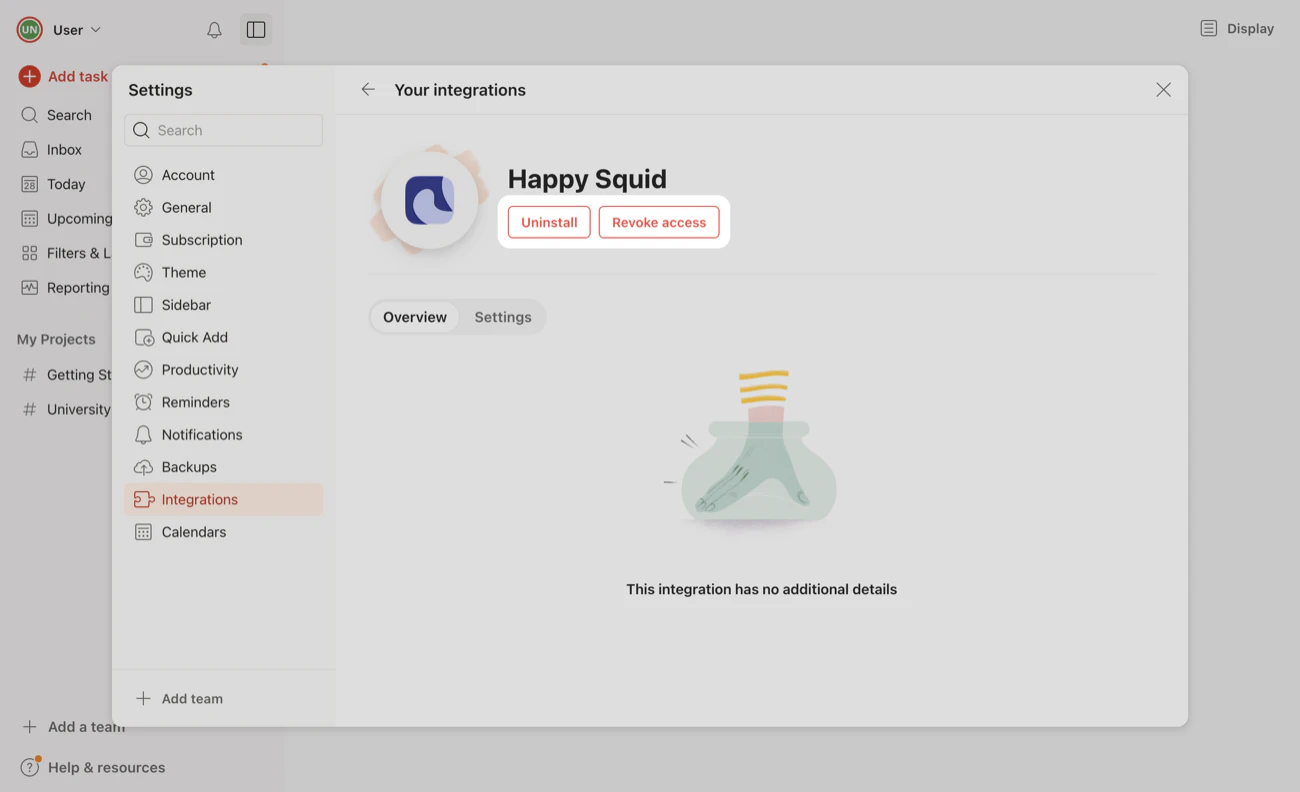
1. In Todoist, open your Settings, then Integrations, and choose TidyWeb.
2. Click Revoke access so TidyWeb can no longer tick off your tasks, and Uninstall to remove it from the ⋯ menu.